
Appearance
Customer / Student Guide
As a student, you can browse quizzes, purchase paid ones, take exams in a professional interface, and download certificates.
Creating an Account
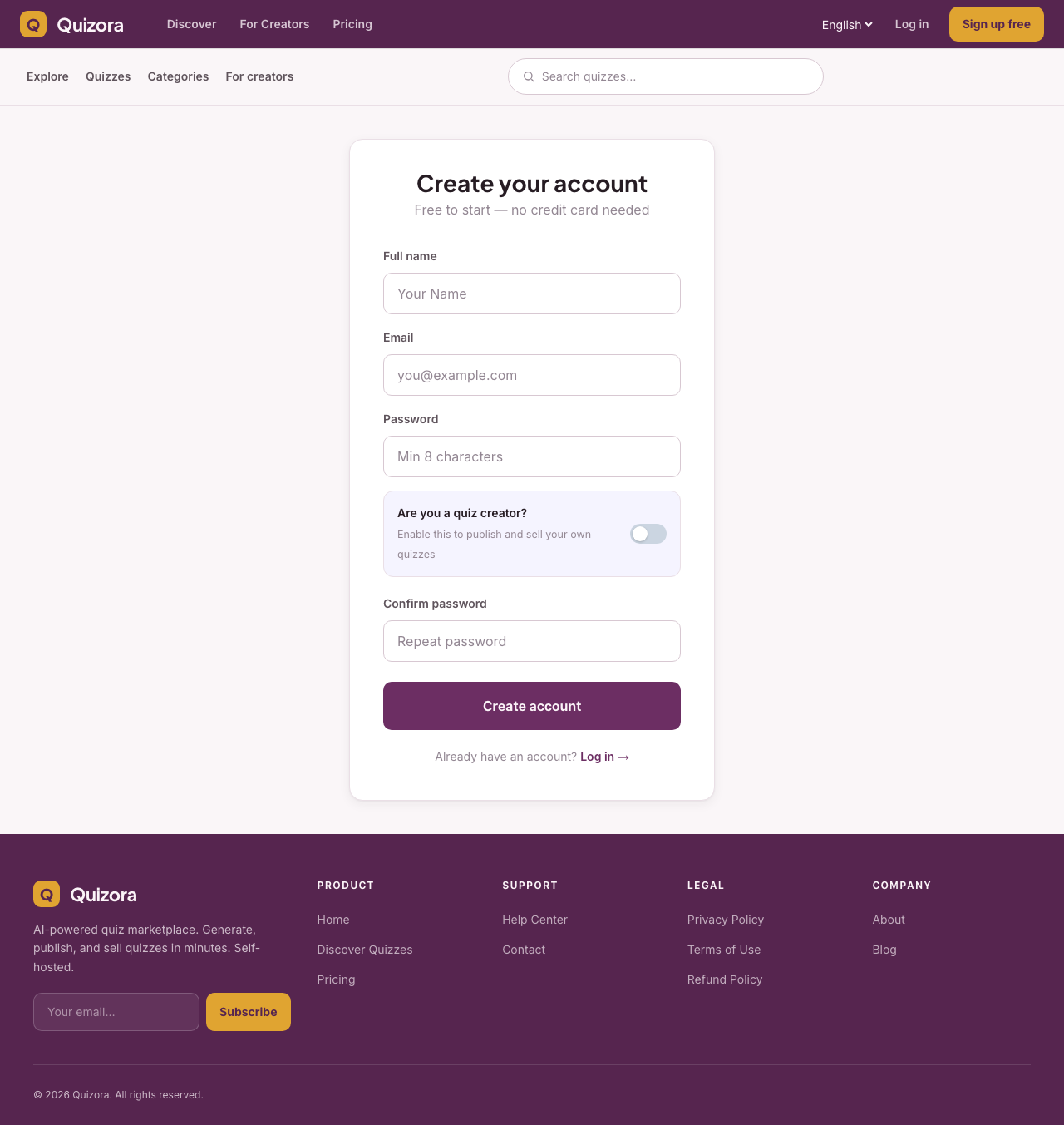
- Visit the platform homepage
- Click Sign Up free in the top right corner
- Enter your full name, email, and password
- Toggle "Are you a quiz creator?" if you also want to publish quizzes
- Verify your email address (check your inbox for a confirmation link)
Logging In
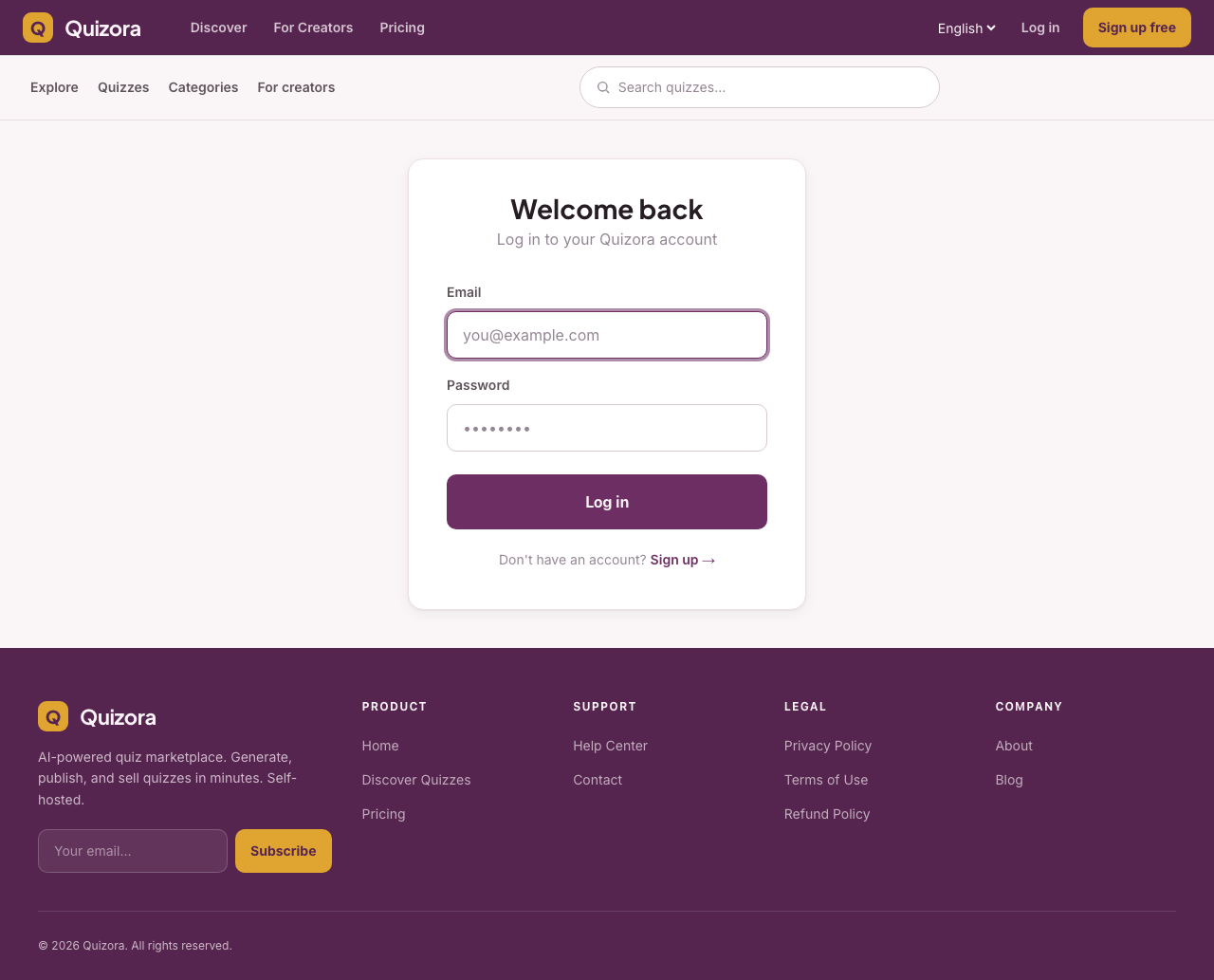
Visit the platform and click Log in in the navigation bar. Enter your email and password to access your account.
Finding Quizzes
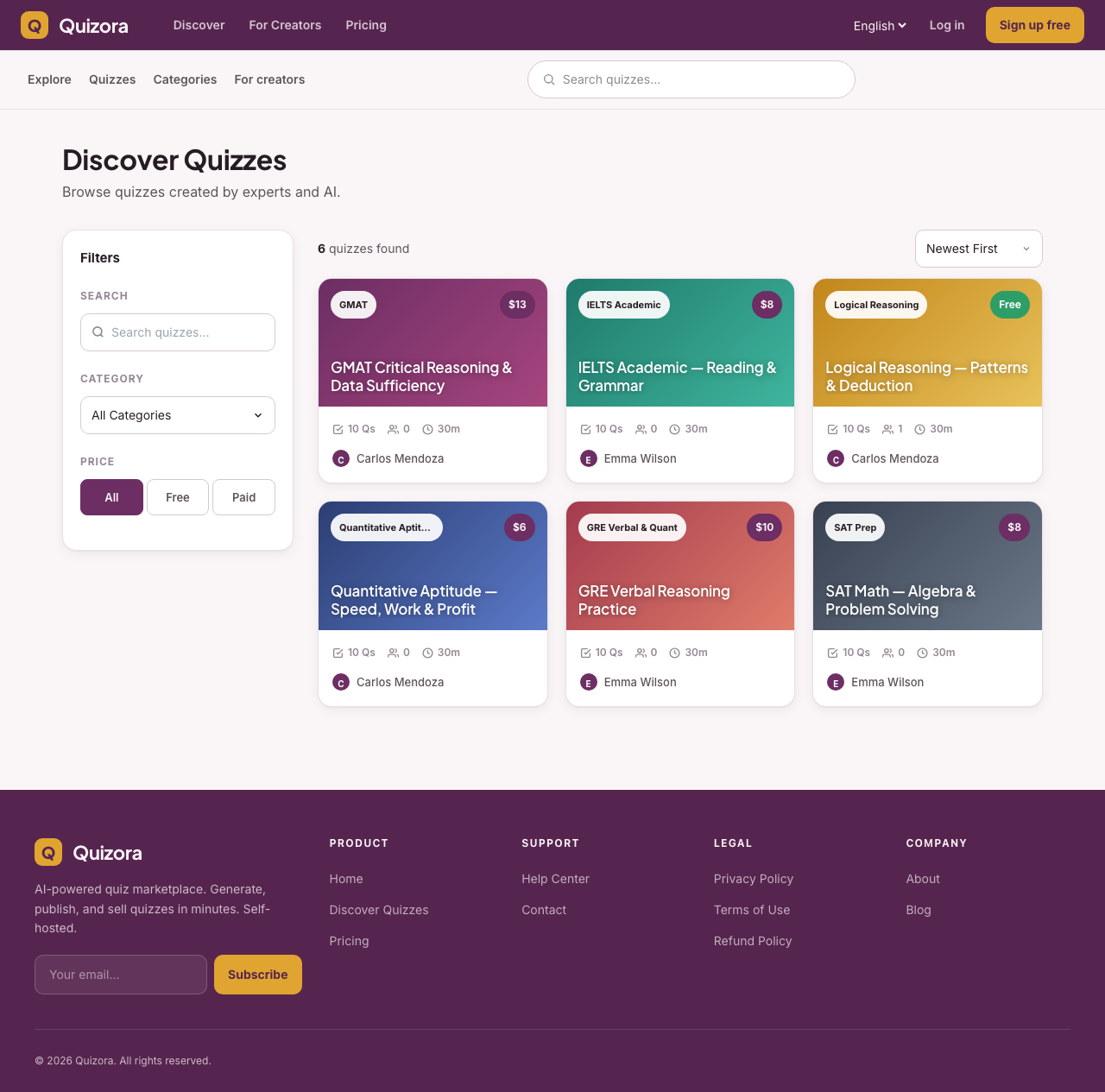
On the Quizzes page, you can:
Filter by:
- Category (e.g. Science, History, Programming)
- Price — Free only, or all
- Difficulty — Easy, Medium, Hard
Search: Type any keyword in the search bar to find quizzes by title or description.
Sort by: Newest, Most Popular, Price (low to high / high to low)
Enrolling in a Quiz
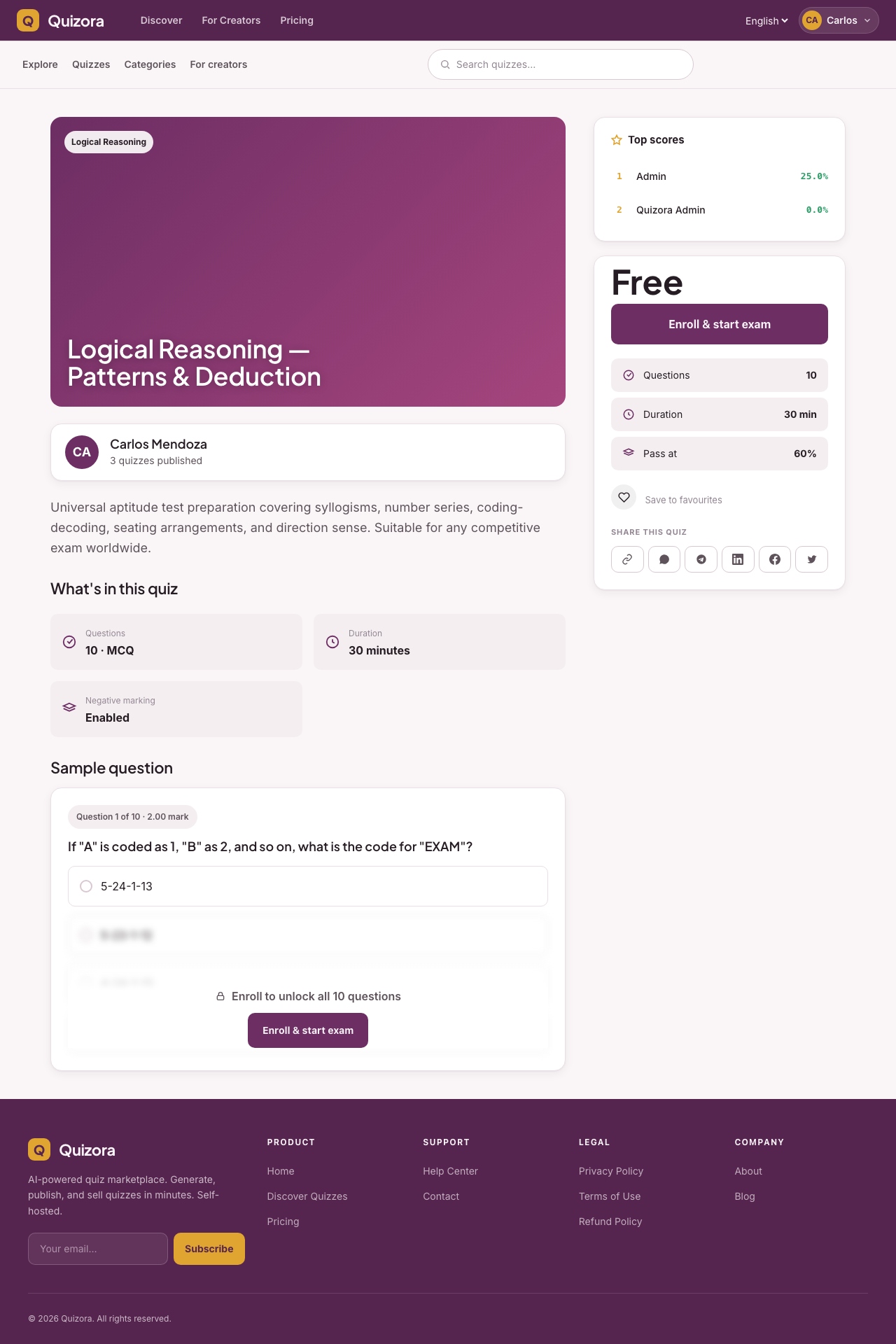
Free Quiz: Click Start Quiz — you're enrolled immediately.
Paid Quiz:
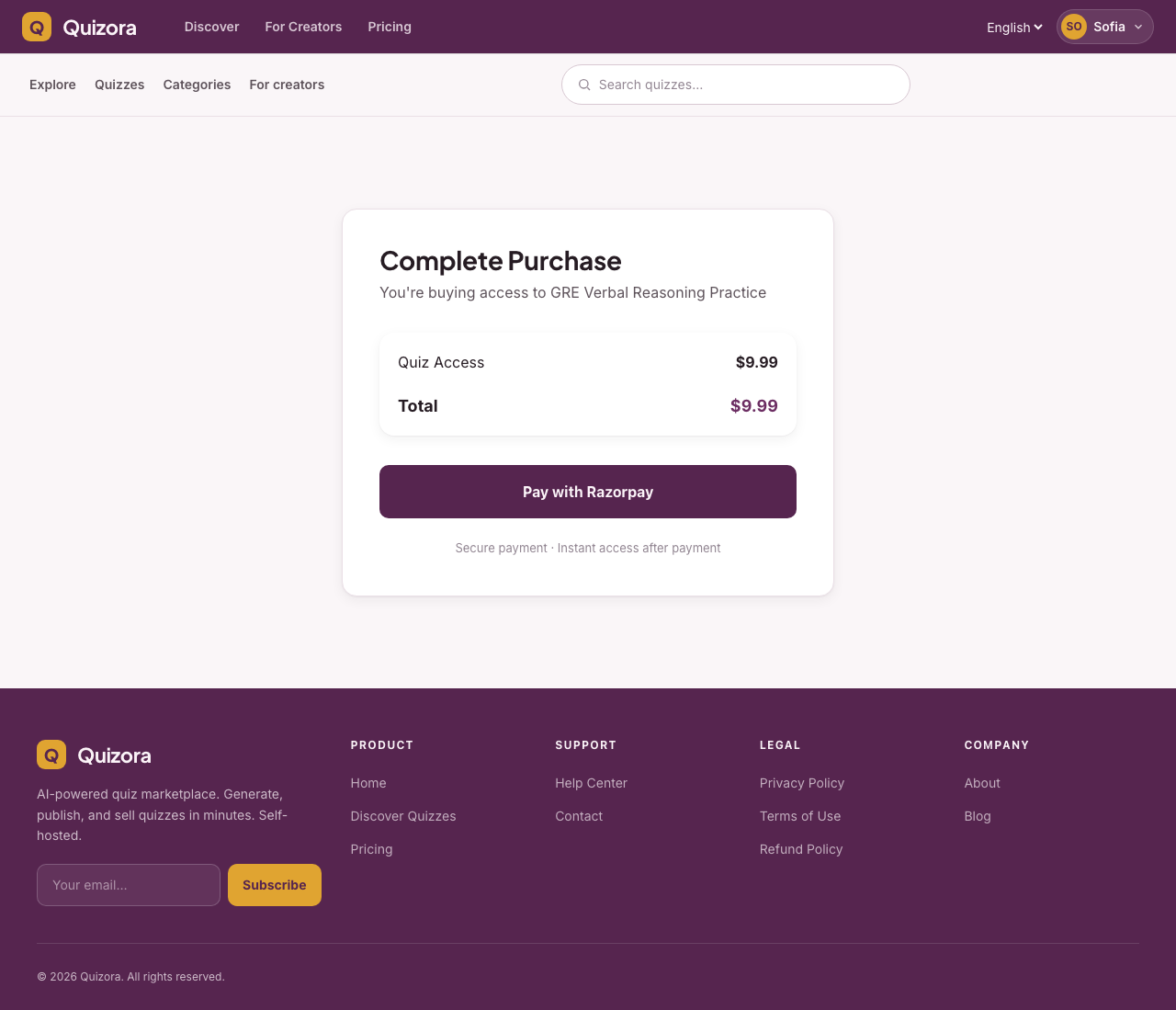
- Click Buy Now on the quiz detail page
- You'll be taken to the checkout page showing the quiz price
- Click Pay with Razorpay (or Stripe if configured)
- Complete payment through the secure payment gateway
- You're enrolled — click Start Quiz to begin
Taking an Exam
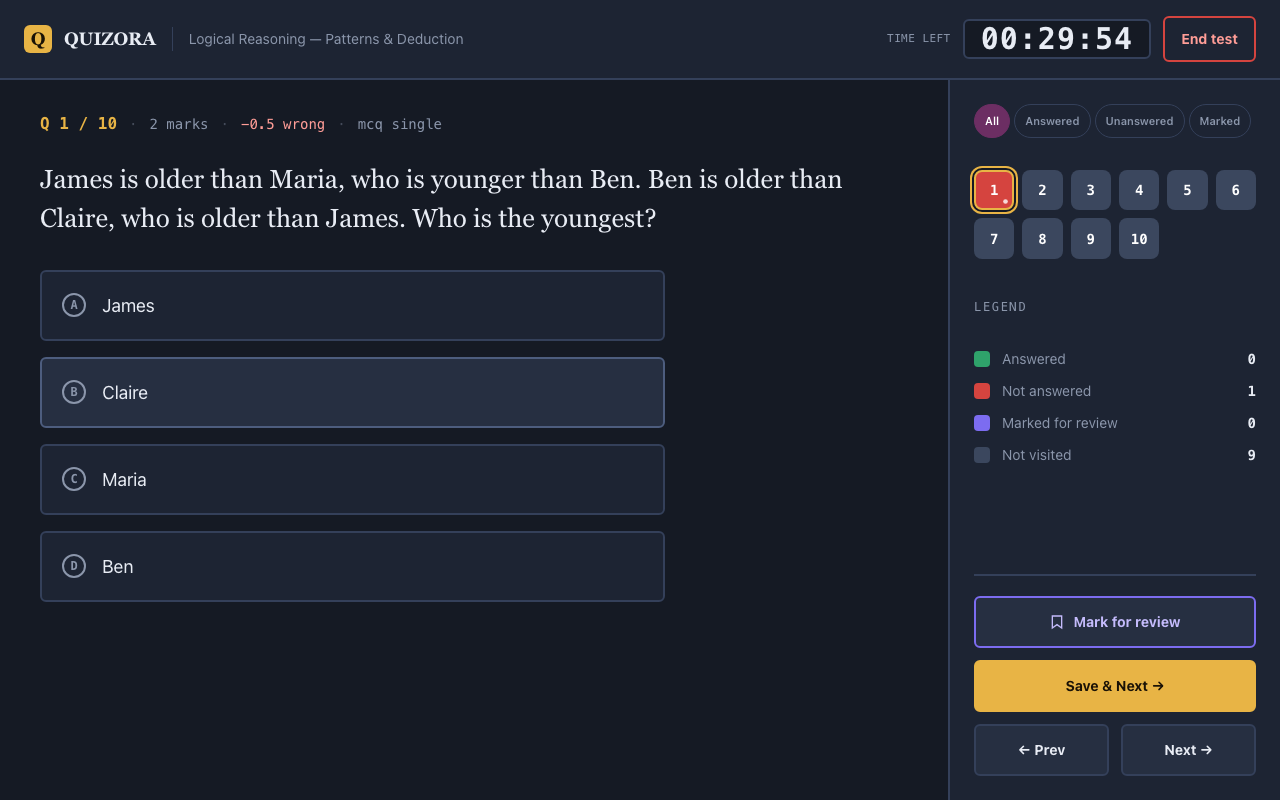
The exam interface is designed like a professional competitive exam panel.
Layout
┌──────────────────────────────────────────────────────────┐
│  Quiz Title                   ⏱ 45:32   [Submit Exam]   │
├─────────────────────────┬────────────────────────────────┤
│                         │  Question Palette              │
│  Question 7 of 40       │  ┌─┬─┬─┬─┬─┬─┬─┬─┐           │
│                         │  │1│2│3│4│5│6│7│8│           │
│  [Question text here]   │  └─┴─┴─┴─┴─┴─┴─┴─┘           │
│                         │                                │
│  ○  Option A            │  ● Answered      23            │
│  ● Option B  ✓          │  ● Not answered   8            │
│  ○  Option C            │  ● Marked review  4            │
│  ○  Option D            │  ● Not visited    5            │
│                         │                                │
│  [Mark for Review]      │            [Save & Next]       │
│  [← Previous] [Next →] │                                │
└─────────────────────────┴────────────────────────────────┘
Question Palette Colours
| Colour | Meaning |
|---|---|
| 🔘 Grey | Not yet visited |
| 🔴 Red | Visited but not answered |
| 🟢 Green | Answered |
| 🟣 Purple | Marked for review |
| 🟡 Amber | Answered and marked for review |
Navigation Tips
- Use Previous / Next buttons to move between questions
- Click any question number in the palette to jump directly to it
- Click Mark for Review to flag a question to revisit before submitting
- Your answers save automatically every 30 seconds — you won't lose progress if your connection drops briefly
Timer
The countdown timer is shown in the top bar. When time runs out, the exam submits automatically.
Don't switch tabs
If the quiz has proctoring enabled, switching browser tabs will be detected and logged. Multiple tab switches may result in a warning or automatic submission.
Viewing Your Results
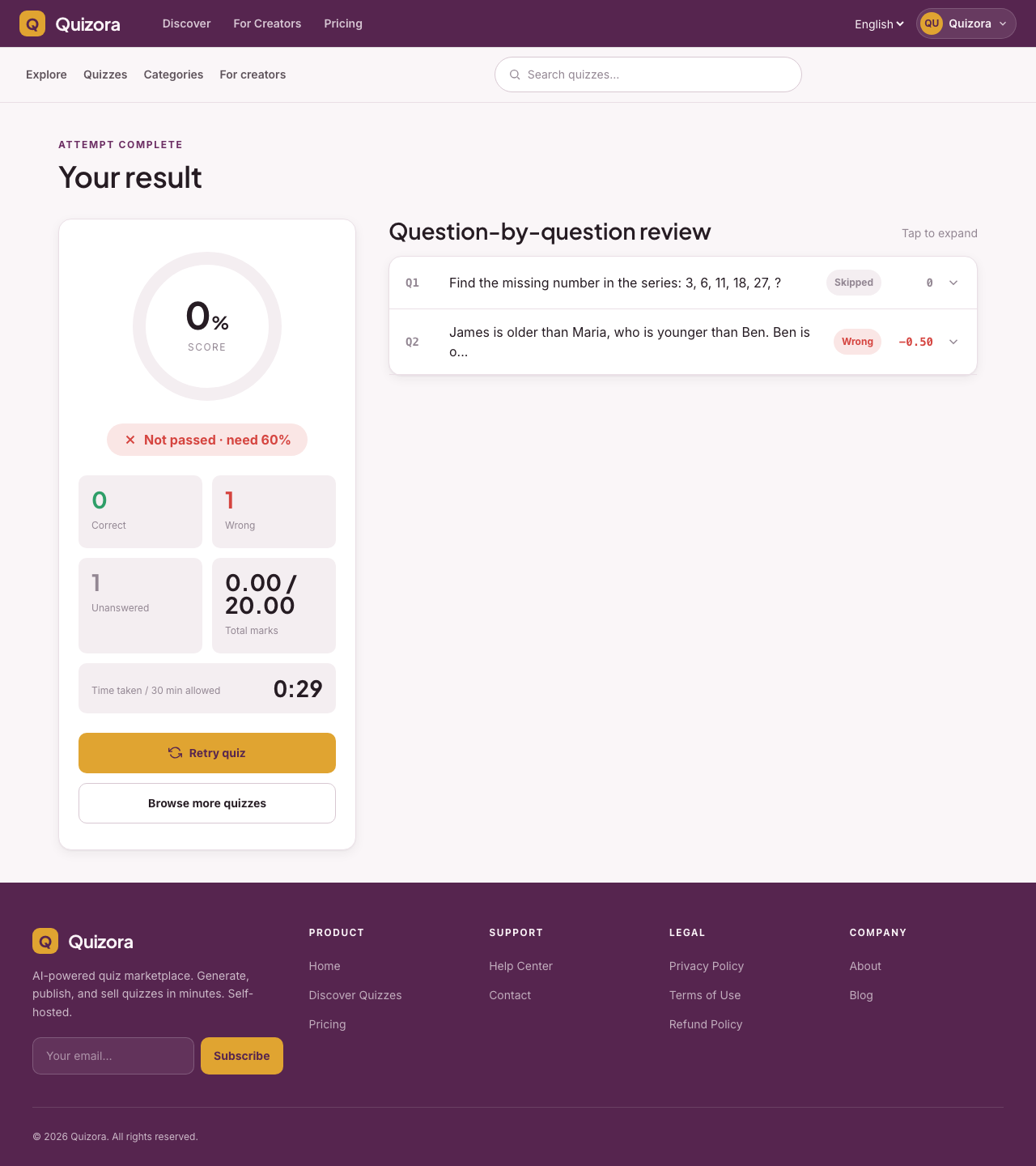
After submitting (or when time runs out), your results page shows:
- Your score and percentage
- Whether you passed or failed
- Marks earned vs total marks
- Time taken
- A review of each question (if the creator enabled post-attempt review)
Certificates
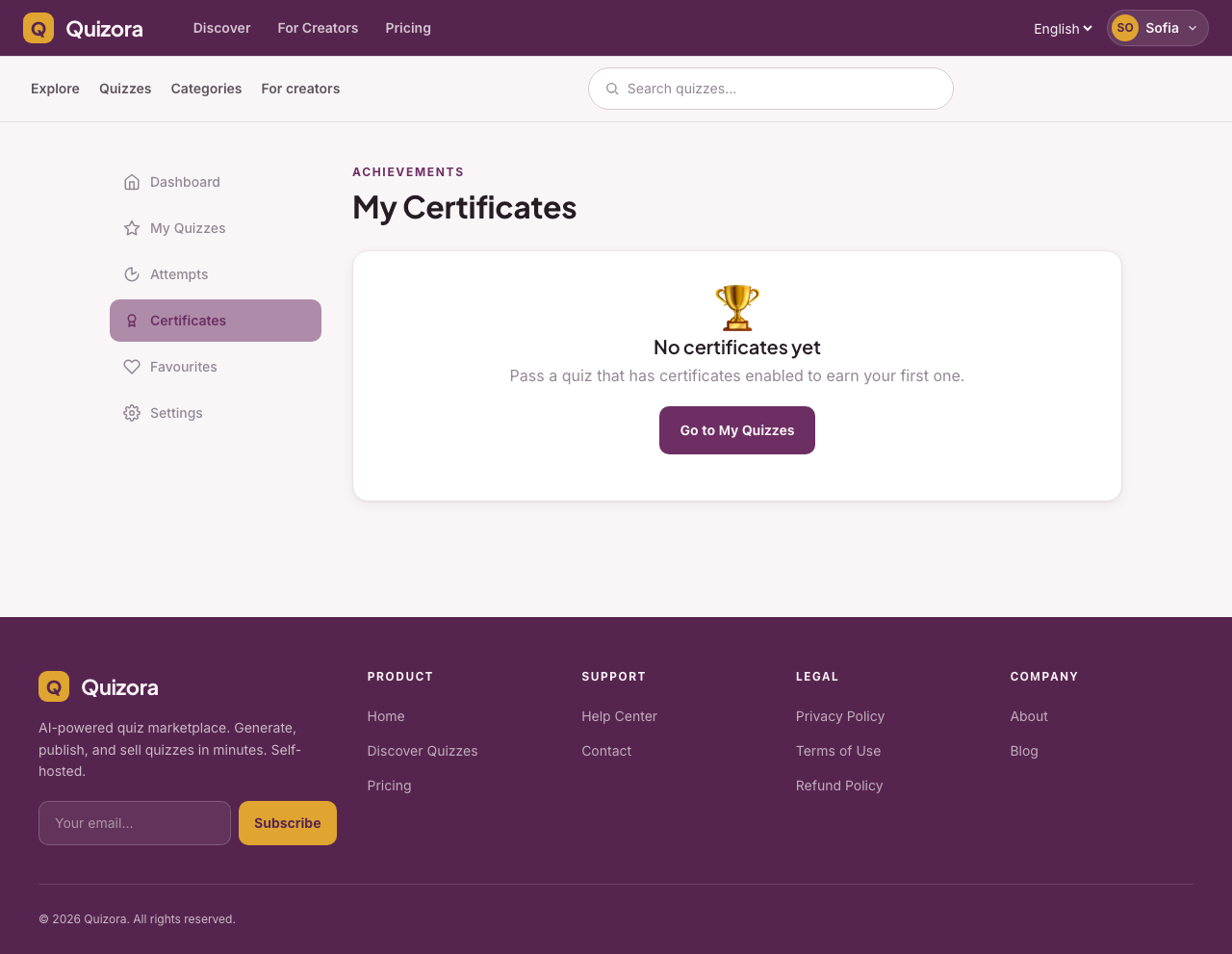
If you passed a quiz that has certificates enabled, a Download Certificate button appears on your results page.
Your certificate includes:
- Your name
- Quiz title
- Date completed
- Score achieved
- A QR code for verification
Anyone can scan the QR code to verify the certificate is authentic.
Your Account
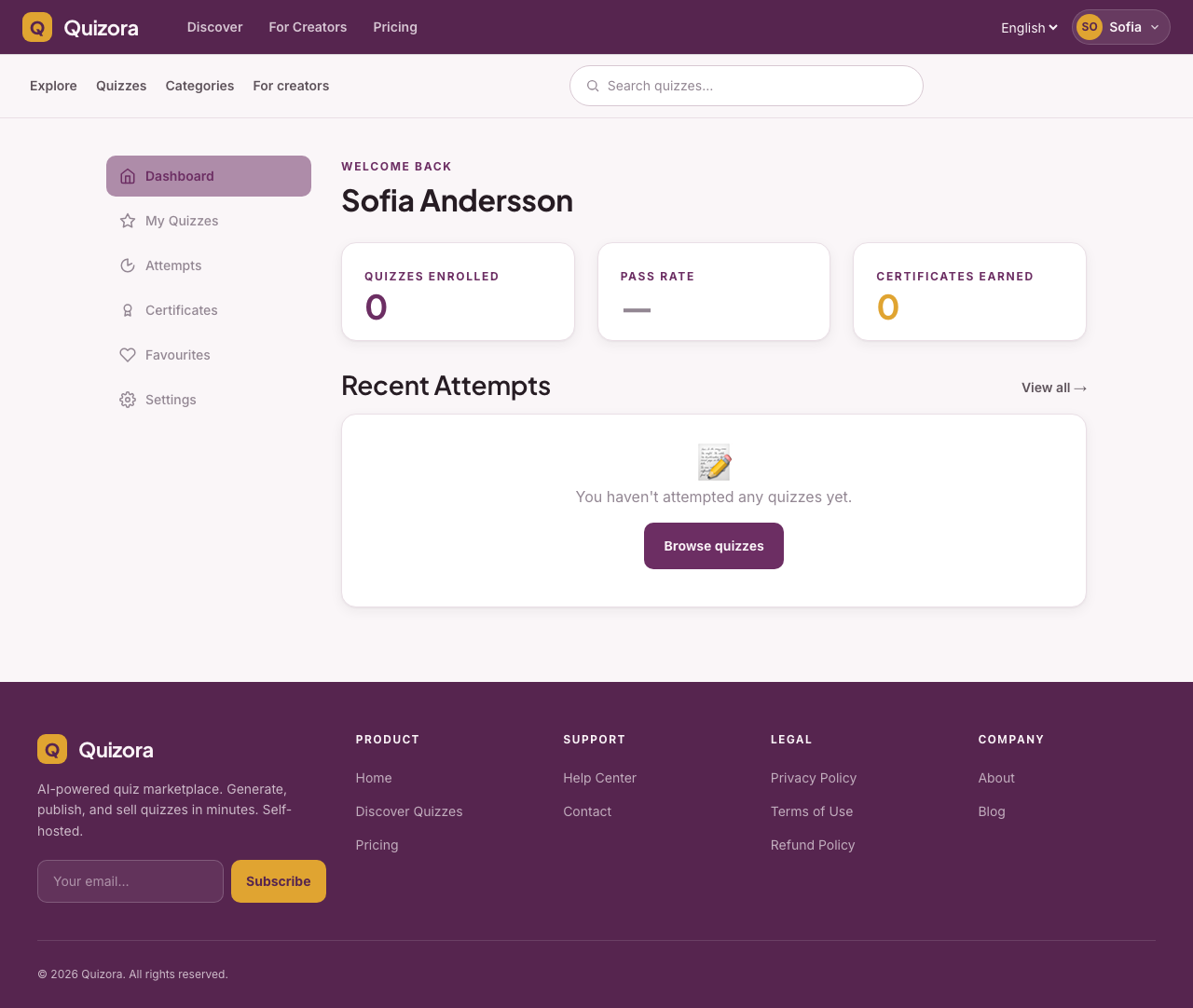
My Dashboard shows:
- All quizzes you're enrolled in
- Your recent attempt history and scores
- Your downloaded certificates
Account Settings
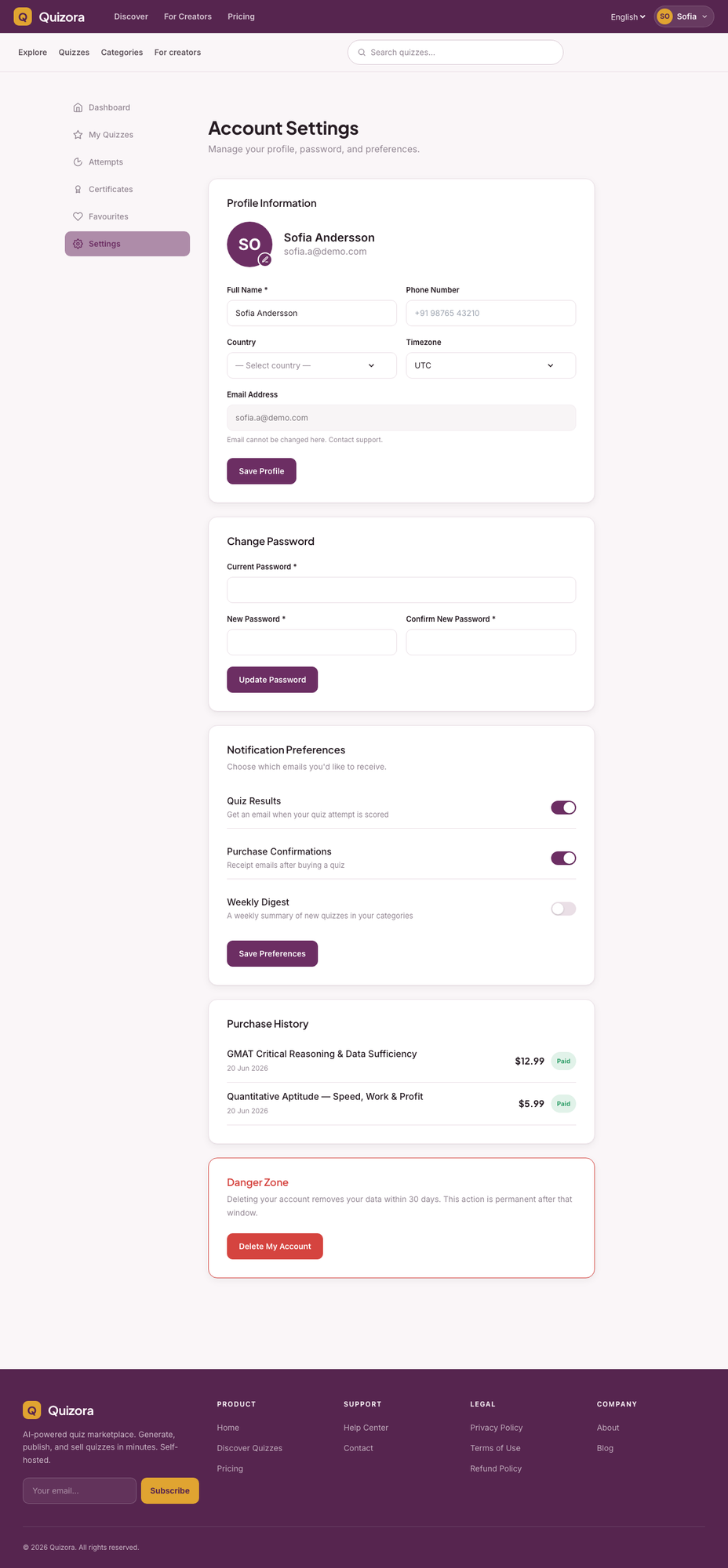
Go to Profile → Account Settings to:
- Update your name, phone number, and timezone
- Change your password
- Set notification preferences (quiz results, purchase confirmations, weekly digest)
- View your Purchase History (all paid quizzes with receipt details)
My Dashboard shows:
- All quizzes you're enrolled in
- Your recent attempt history and scores
- Your downloaded certificates
To access: click your name in the top-right corner → My Dashboard, or go to https://yourdomain.com/my/dashboard.
Frequently Asked Questions
Can I attempt a quiz more than once? It depends on the quiz settings. The quiz detail page shows the number of allowed attempts. After reaching the limit, the Start button will be disabled.
Can I pause a quiz and resume later? Not currently. Once you start an exam, the timer runs until you submit or time runs out. Make sure you have enough uninterrupted time before starting.
I bought a quiz but can't access it. What do I do? Go to My Dashboard → Purchases. If the quiz shows as paid there but you can't start it, please contact support with your order ID.
My certificate shows the wrong name. Certificates use the name on your Quizora account. Go to My Profile → Edit to update your name, then re-download the certificate.